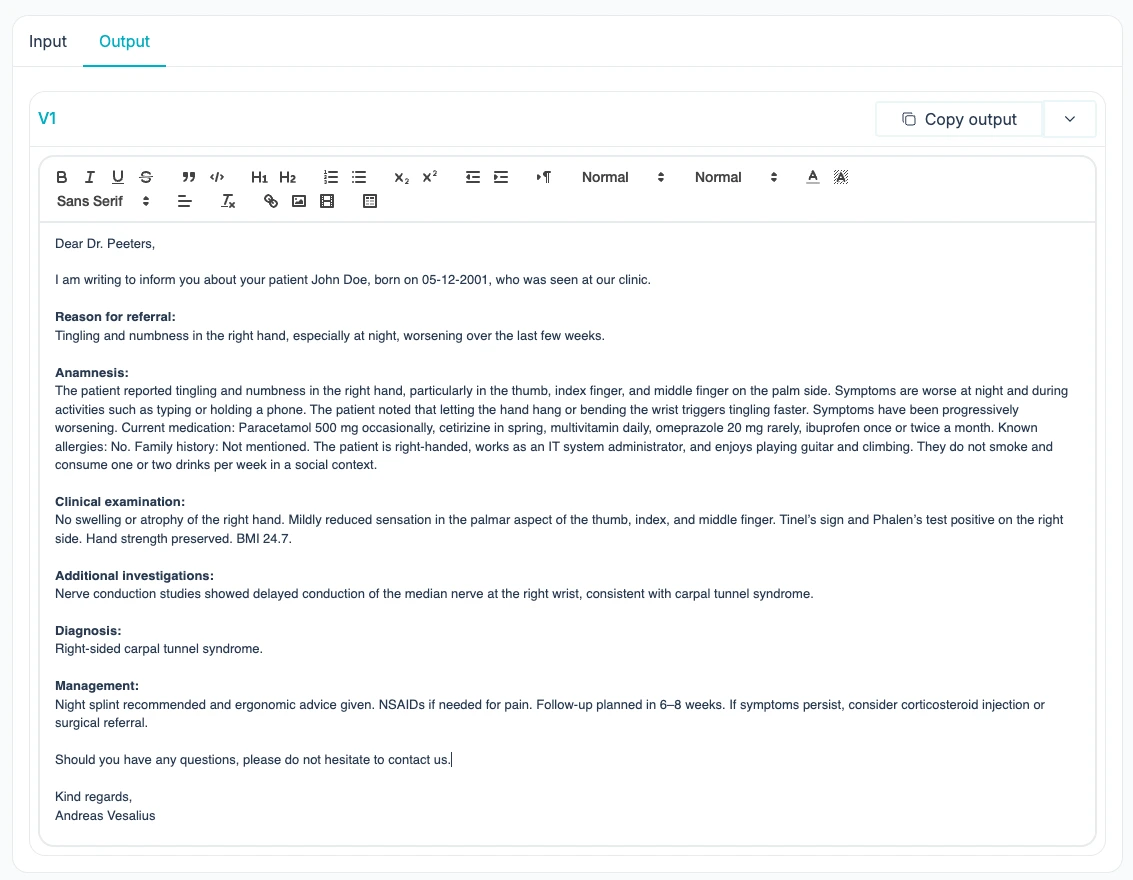
What is an output template?
Output templates let you define exactly what Vesalius AI generates after a patient interaction. You configure the structure, content, and timing — and the system handles the rest.
Once configured, every interaction automatically produces the right output at the right moment.
Important: multiple templates can be active at the same time and work fully independently of each other. A referral letter and a consultation note can be generated simultaneously without any conflict.
How do I set this up?
Go to Settings → Interactions → Output.
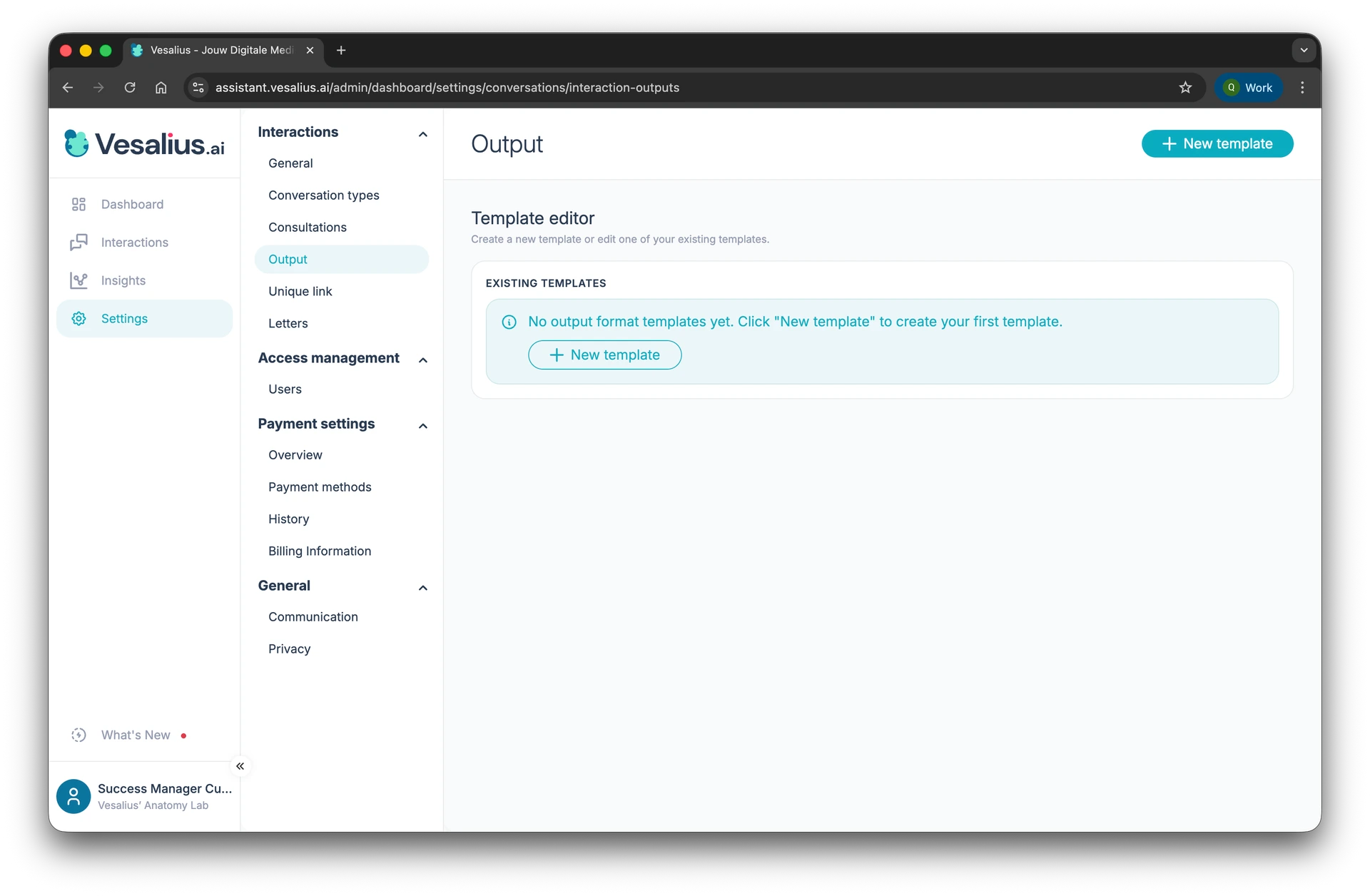
Step 1 – Create a new template
- Click the + New Template button
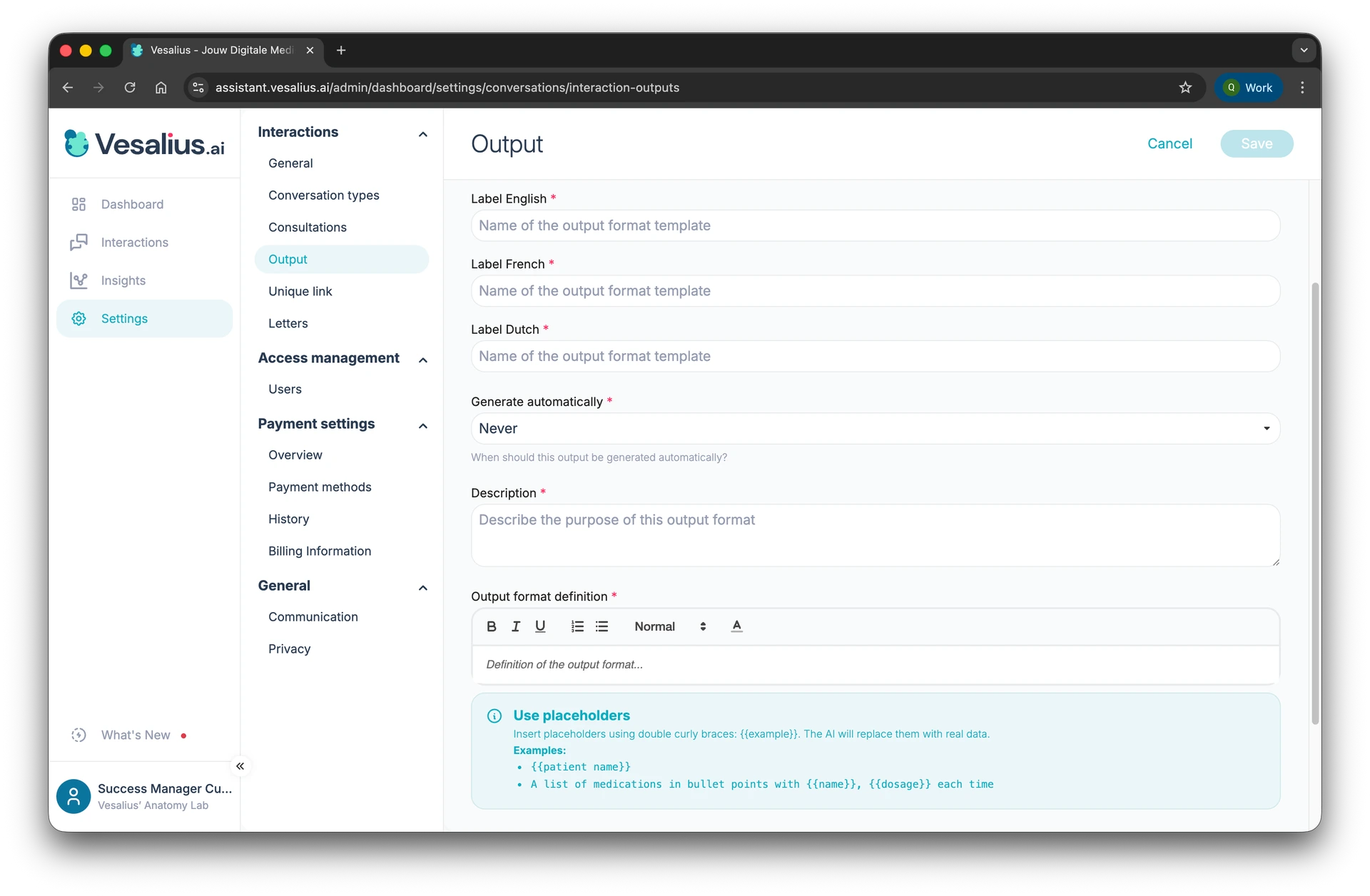
Step 2 – Give your template a name
- Choose a clear, descriptive name that reflects the purpose of the output
Example: Letter to the Referring Physician
Step 3 – Choose a trigger
- Set when this template should automatically fire. There are 4 options:
- None — not automatic, only triggered manually
- After conversation — fires once the patient conversation is finished
- After consultation — fires after you finish a consultation via the speech-to-text module
- After conversation and consultation — fires only when both are completed
Step 4 – Describe the purpose of the template
- Write a short description of what this template is for
Example: This template is used to generate the referral letter to the referring physician.
Step 5 – Define the output format
This is the most important step. Here you describe the structure and content of your output.
- Write out the desired structure in the text field
- Use placeholders to insert dynamic patient data. Write them using double curly braces: {{example}}
Examples:
- {{patient name}}
- {{date of consultation}}
- {{referring physician}}
You can also use placeholders inside running text or lists:
The patient {{patient name}} was seen on {{date of consultation}} for...
For example:
Dear Dr. {{name referring physician}},

I am writing to inform you about your patient {{patient name}}, born on {{date of birth}}, who was seen at our clinic on {{date of consultation}} by {{treating physician}}.

Reason for referral:
{{referral source}} — {{main complaints}}

Anamnesis:
{{anamnesis summary}}. Current medication: {{medication}}. Known allergies: {{allergies}}. Family history: {{family history}}. {{lifestyle}}

Clinical examination:
{{clinical findings}}. BMI {{BMI}}.

Additional investigations:
{{investigation results}}

Diagnosis:
{{diagnosis}}

Management:
{{management plan}}. Follow-up planned within {{follow-up timing}}.

Should you have any questions, please do not hesitate to contact us.

Kind regards,
{{treating physician}}Note: a placeholder will only be filled in if the information was actually collected during the interaction. If a data point was not captured in the conversation or consultation, the field will remain empty.
Step 6 – Add additional instructions (optional)
- Add extra prompting to fine-tune the output
Examples: be concise, write in formal English, avoid medical jargon
Step 7 – Save the template
- Click Save in the top right corner
The template is now active and will automatically generate output based on the trigger you set in step 3.
Where do I find the output?
Once a template has been triggered — automatically or manually — you can view the result directly in the conversation detail page.
1. Open the relevant conversation by clicking on it
2. At the top of the page, navigate to the Output tab
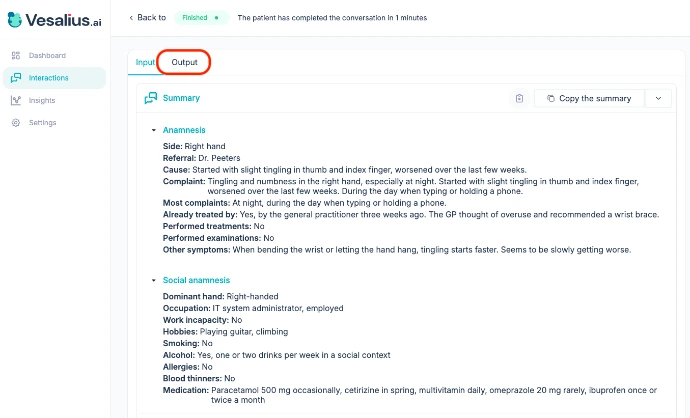
3. Here you will find all generated outputs for that conversation
If a template is set to None, it will not trigger automatically. To generate the output manually:
1. Open the Output tab on the conversation detail page
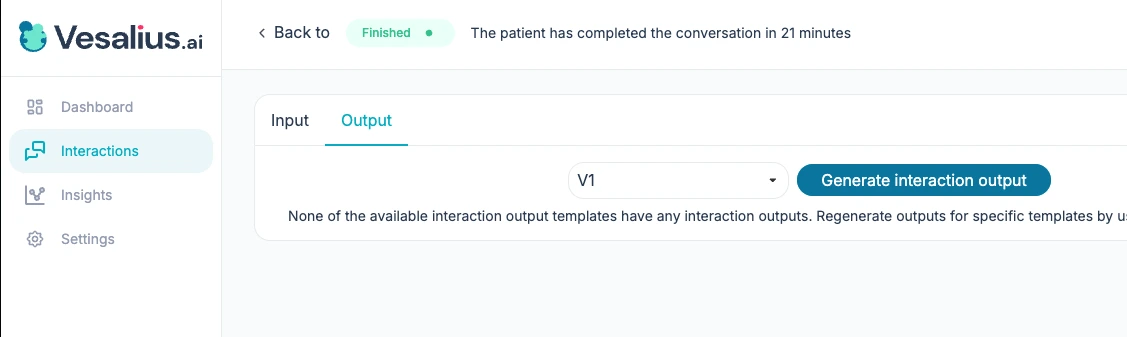
2. Select the desired template from the dropdown
3. Click Generate