You can manage all questionnaires via Settings > Types of conversations. This section gives you an overview of all questionnaires currently available on the platform.
To save the questionnaire, please make sure all mandatory fields are completed.
There are two main actions you can take:
1. Edit an existing questionnaire
2. Create a new questionnaire
1. Editing an existing questionnaire
Click on an existing questionnaire to open it.
You can:
- Modify questions
- Add new questions
- Rearrange questions within a group
! Don’t forget to click Save in the bottom-right corner after making changes !
2. Creating a new questionnaire
Click the “New questionnaire” button at the top of the page. And choose 'Create blank template':
You’ll start with an empty template.
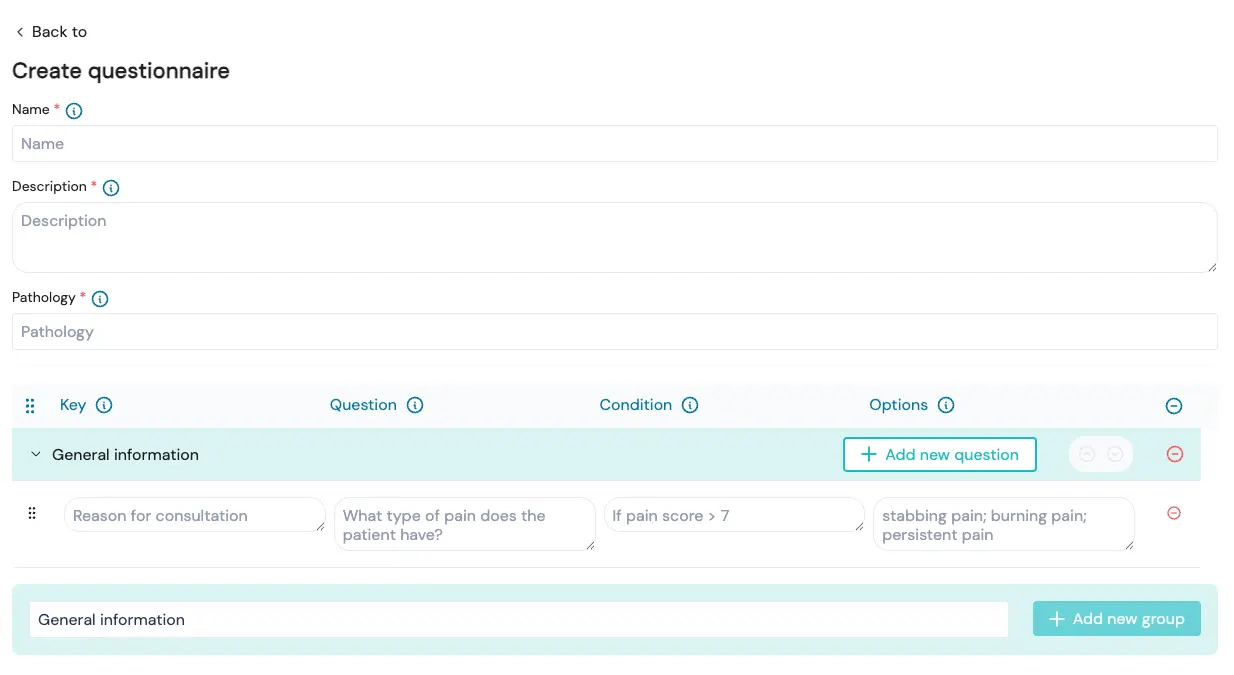
First, fill in the general info:
- Name: This is the title of the questionnaire as it will appear in the system. Choose a clear and recognizable name.
- Description: Describe when or why this questionnaire should be used. This helps the AI automatically activate the right questionnaire based on the reason for consultation.
- Intro: The Intro field is used to give context to the patiënt through the chatbot. Here you can add extra information that will be displayed in the first message of the conversation.
- Pathology: The condition or reason the questionnaire is relevant for. Helps group and apply questionnaires correctly.
- Linked doctors: This is optional, used to keep structure in your profile
- Conversation type: The type of questionnaire it is, this is mostly to keep the platform structured
- Summary generation prompt: Here you can fint tune the output of the conversation type, for example add: Write everything short and in bulletpoints or write everything in full sentences.
To start creating a questionnaire:
Step 1: Create a group
A group is a section used to organize related questions.
Example: General information
Step 2: Add a question
Click “New question” and fill in at least the following two fields:
• Key: A short keyword used to link the answer in the summary (e.g., Type of pain)
• Question: The actual question that will be shown to the patient (e.g., What type of pain is the patient experiencing?)
Optional fields:
• Condition: Show this question only if a condition is met (e.g., If pain score > 7)
• Options: Use this for fixed answer choices (e.g., Sharp pain; Burning pain; Constant pain)
👉 You can add as many groups and questions as needed.
⚠️ Note: The bot will always go through the entire questionnaire from start to finish.
On average, we see questionnaires containing 30–45 questions, and about 80% of patients complete them fully. Keep this in mind when designing longer forms.
Step 3: Finishing up
Once you’re happy with your questionnaire, click Save.
If the save button is not available, check if every mandatory field is filled in!
The questionnaire is now available for use in the bot, under the name you gave it.